Chrome extension install guide
2048 Cupcakes Extension: Chrome Install, Permissions, and Offline Play
The 2048 Cupcakes extension is mainly a desktop convenience: a toolbar shortcut, popup game, or offline-friendly way to keep the puzzle nearby. This guide shows how to check the official Chrome Web Store listing, review what you are adding, and choose browser play when an install is unnecessary.
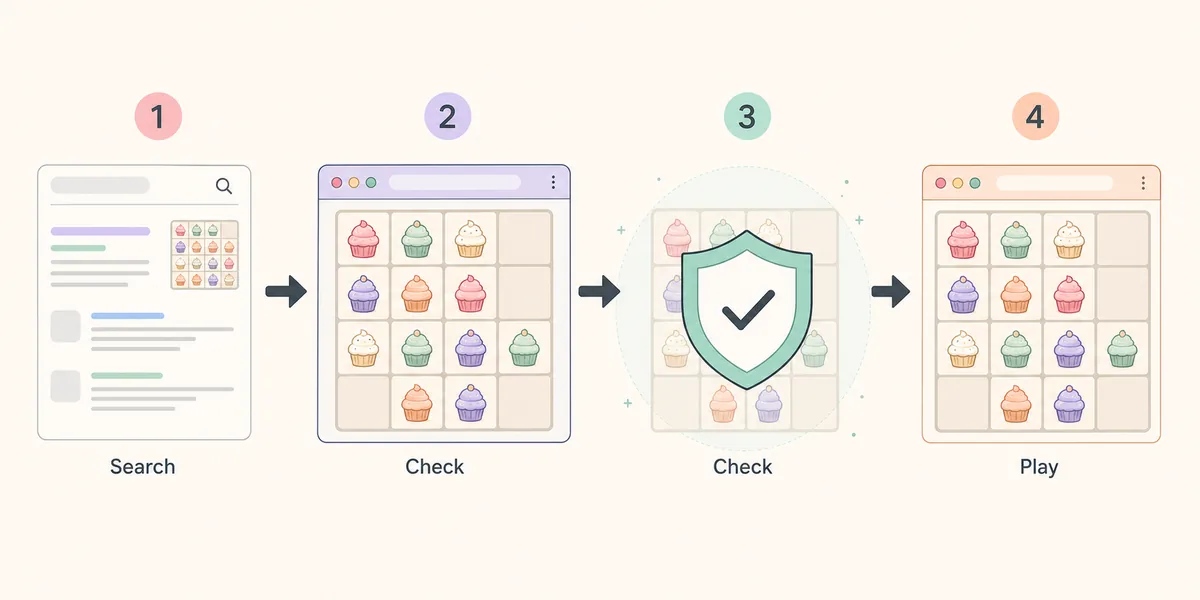
Quick Answer: Is the 2048 Cupcakes Extension Worth Installing?
It can help if you play on the same desktop and want a toolbar or popup shortcut. Start at the official Chrome Web Store listing, confirm the publisher and permissions, and read the live details before selecting Add to Chrome. The listing checked on September 10, 2026 showed version 1.3.0, 798 KiB, and an update date of July 21, 2023; store fields can change.
You do not need an extension to play 2048 Cupcakes. Browser play is simpler for a quick session, shared computer, or managed device. Choose an add-on for convenience, never for a promised bypass or special score. If a page asks for an unrelated installer, proxy, or account credentials, close it.
What the 2048 Cupcakes Chrome Extension Does
A browser extension is an add-on that Chrome loads inside the browser. A Cupcakes 2048 extension may provide a toolbar icon, popup game, or offline-friendly copy. That is different from a normal web page and from the GitHub source. The name is not enough; compare the store description, screenshots, permissions, and publisher.
A good install path is simple: use a recognized store, open the add-on, play, and remove it from Chrome settings if needed. It should not require a mystery installer or download manager. If you only need tile values or strategy, the site guides may be enough without adding software.
Listing Check
Source: Chrome Web Store listing
Purpose: Cupcake-themed 2048 browser access
Version: 1.3.0 when checked
Updated: July 21, 2023 when checked
Size: 798 KiB when checked
Direct file: Not claimed; store page is the fallback
Checked September 10, 2026. Revisit the live listing for current version, size, permissions, and availability; this page does not promise a direct CRX package.
How to Install the 2048 Cupcakes Extension
Use this routine on a personal Chrome profile. Follow owner or administrator rules on a managed device.
Step 1
Open the official listing
Use the Chrome Web Store link and confirm the address. Avoid a third-party page that repackages the same name.
Step 2
Read identity details
Compare the name, publisher, description, screenshots, feedback, and update information. A familiar title is not proof that listings match.
Step 3
Review permissions
Expand the permissions or privacy section. Access should make sense for a small puzzle; broad or unrelated access deserves a pause.
Step 4
Add it from Chrome
Use the store install control only after your checks pass. Read Chrome’s confirmation instead of accepting a separate download prompt.
Step 5
Test one round
Open it from the toolbar or extensions menu. Test movement, reset behavior, and the popup before relying on it.
If the listing is unavailable or behaves differently, do not hunt for a random CRX mirror. Use the no-download page and the store’s normal report tools.
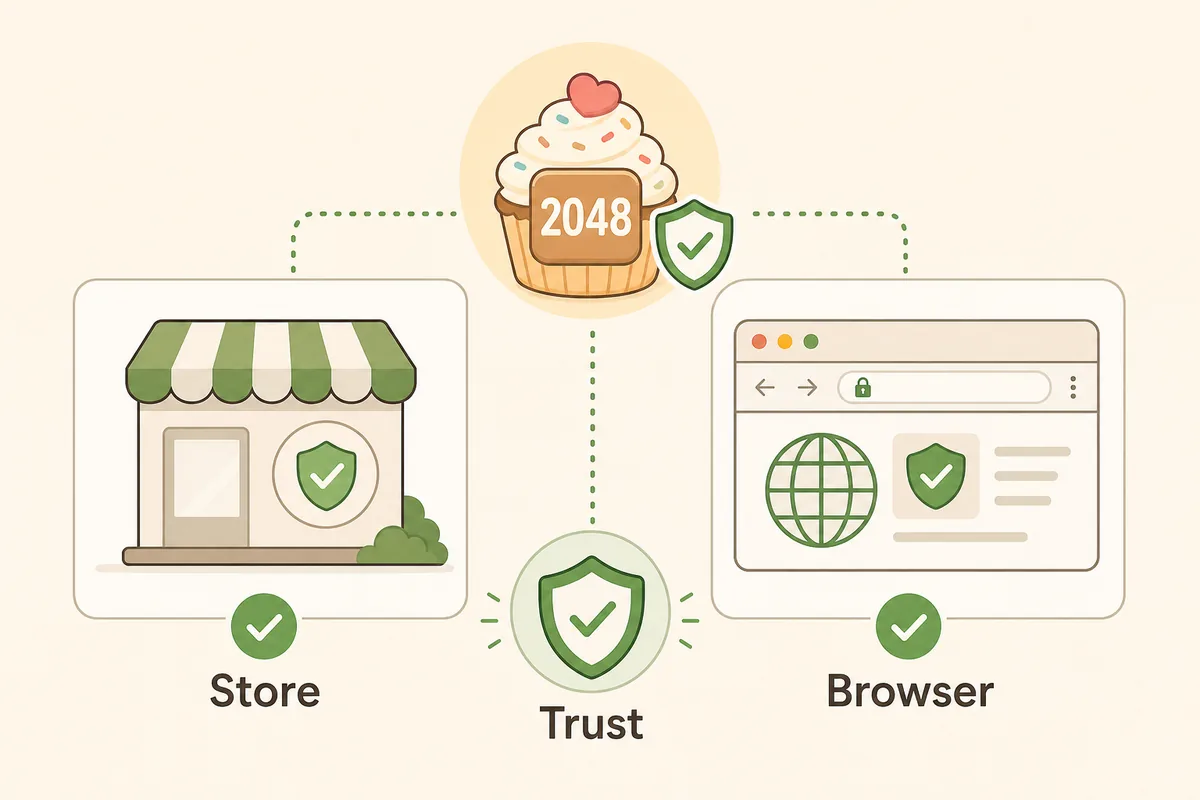
Check Permissions and Privacy Before You Add It
Permissions describe what an extension can access or change. Wording varies by listing and Chrome version, so read the live store page before installation. A standalone cupcake puzzle should not need unrelated site access, download control, search changes, or account control.
Store disclosure is not a guarantee for every fork or mirror. Keep the official listing as the reference, and remove an add-on that opens unexpected tabs, injects unrelated ads, or asks for access that does not fit a puzzle.
Publisher match
Confirm the visible publisher before comparing reviews or screenshots.
Permission fit
Ask whether each permission is necessary for a board game.
Update context
Read the update date and description; old maintenance still matters.
Easy removal
Know Chrome’s Extensions page so you can disable or remove it.
Offline Play and Common Troubleshooting
Offline can mean a popup that opens without a remote page, or a cached add-on that still depends on Chrome’s local state. It does not automatically mean sync, backup, or unlimited access. Test only in a normal, permitted way and read the live listing.
If the extension fails, open the site’s play page in another tab. If the board works there, the popup problem is probably separate from the game rules and you have a safe fallback while deciding whether to remove it.
| What you see | First check | Safer next step |
|---|---|---|
| The icon is missing | Check Chrome’s extensions menu, pin state, and enabled state. | Use the store listing or browser page, not a mirror. |
| The popup is blank | Reload Chrome once and compare the no-download page. | Remove it if the blank state repeats. |
| The board will not move | Click the board and try one arrow-key move. | Use the browser game while investigating. |
| A new download prompt appears | Check whether it came from the official store. | Do not run an unrelated installer or CRX. |
How to Check the Listing Before Every Install
The official Chrome Web Store listing is the right place for current details, not a static article or search snippet. Revisit it when Chrome shows an update, behavior changes, or you use a new profile; publisher text, permissions, reviews, and update data can change.
This page treats the store as a source link, not proof of permanent maintenance or universal compatibility. It does not claim a direct file, security scan, or guaranteed offline mode. Use browser play for a quick round, GitHub for source context, and the all-cupcakes guide for tile progression.
- Check the exact listing URL and publisher.
- Read permissions and privacy disclosure.
- Review update information before installing.
- Use browser play when the extension is unavailable.
- Remove it if behavior no longer matches its purpose.
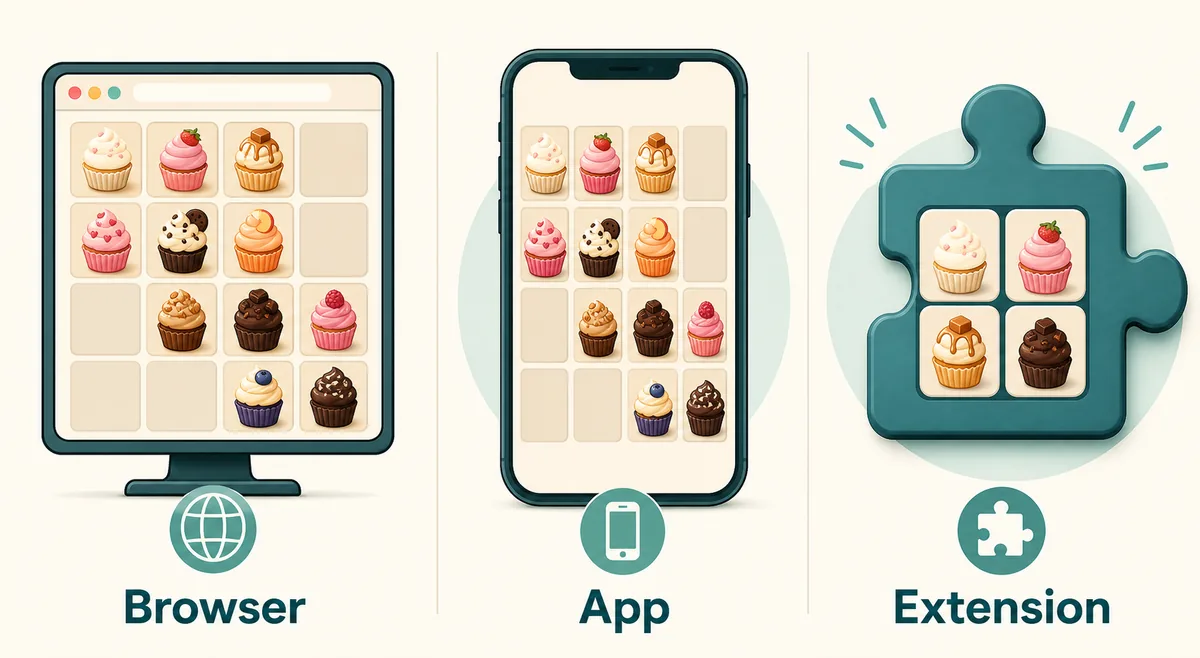
Extension vs Browser Play vs App vs GitHub
These destinations answer different questions. Choosing the right one avoids unnecessary installs and keeps source, game, and convenience separate.
| Option | Best for | Limit to remember |
|---|---|---|
| Chrome extension | A desktop shortcut, popup, or possible offline-friendly session. | Review permissions, publisher, and update context. |
| Browser play | A quick round, shared device, or test before installing. | It depends on page availability and creates no shortcut. |
| Mobile app | A home-screen icon and touch-first play from a recognized store. | A separate listing may not match the browser tiles. |
| GitHub repository | Source files, README context, a demo link, and license details. | A repository is not automatically an installer. |
Who Should Use the Extension?
Choose based on your device, network rules, and play frequency.
Frequent desktop player
A toolbar shortcut can save clicks when the listing and permissions make sense.
First-time visitor
Start in the browser so you can confirm the game before installing anything.
Managed device user
Follow school, workplace, or family-device rules; do not bypass controls.
FAQ About the 2048 Cupcakes Extension
Source and Scope
The official pages are linked for live listing details. Version, update, permissions, availability, and publisher information can change.
- Official Chrome Web Store listing — Inspect the current publisher, permissions, privacy, update, and availability details.
- Developer website — Use the linked developer site as a second identity check when the store listing provides it.
Related Cupcakes 2048 Pages
2048 Cupcakes App
Compare app, extension, and browser choices.
2048 Cupcakes Unblocked
Play in the browser without adding an extension.
2048 Cupcakes GitHub
Read source, demo, and license context.
All Cupcakes Guide
Check tile values and progression.
2048 Cupcakes Strategy
Use a corner plan for steadier play.
Bottom Line
The 2048 Cupcakes extension can be a useful desktop shortcut, but start with the official Chrome Web Store listing. Check the publisher, permissions, privacy details, version, and update information; do not use a random CRX mirror. For a quick or shared-device session, browser play is usually simpler.